Showing posts with label Crawl. Show all posts
Showing posts with label Crawl. Show all posts
Tuesday, 9 December 2014

How to search content from external locations in SharePoint 2010
Problem
With evolution of search, different kinds of requirements arise for searching content. One of the requirements we came across was that they wanted to search for content from external locations (i.e. like Google, YouTube and other public facing internet applications).Solution
SharePoint 2010 has a web part called "Federated Results". This searches content from the configured federated locations (like Google) that search content on provided parameters and generates output.In this article, we will be concentrating on how to search content from such external applications. For this article, we will take "YouTube" as an external location. To define a federated (external) location, go to Central Administration > Application Management > Service Applications > Manage Service Applications > Search Service Applications. Click on "Federated Locations" under "Queries and Results" category.

Add a new location. We will first fill the general information: Location name (Youtube), display name (Youtube) and description (any suitable description) which makes a location unique.

Moving ahead to the Location Information category, we need to select the protocol which we will search content (i.e either Search index on the server, Fast index or opentext 1.0/1.1). For our requirement to define the YouTube location, we will select the Opentext protocol.
We also need to provide one mandatory detail which is the Query Template - which mentions from which location we will search and what will be the search parameter.
For our requirement we need to mention, "http://www.youtube.com/rss/tag/{searchTerms}.rss" where "searchTerms" will be the content searched in search box. Optionally, we can also provide a link for "More Results" that will appear at the bottom of search (as shown in the image below).
Leave the rest of the options to defaults.
Click on OK and add location.

Perform a full incremental crawl after the location is created.
Now go to the web application > search center results page and add a web part named "Federated Results" from "Search" Categories.

Edit the Web Part properties and browse to the Location section under Location Properties. If everything above is performed accurately, an option named "Youtube" will appear. Select it and apply changes.

Now we will search some content like "Microsoft" and we could see that with the search core results, a column of search results appears on right side of the screen which provides search results related to "microsoft" from youtube.

By implementing a process this way, it can reduce overburden of configuration and management of searching from federated locations.
Next Steps
- Discover different external location and use the federated web part to make search simple and effective.
- Check some of these other articles at MSSharePointTips.com:
Reference:
http://www.mssharepointtips.com/tip.asp?id=1149&page=3
SharePoint Search Components and Search Topology
The search-component of SharePoint 2010 is one of the central ones and needs individual adaption after installation. When not individualizing the search, all components of the “search topology” will be installed on one server. Microsoft recommends distributing these components across servers to guarantee a load sharing and reliability.
With small to medium SharePoint farms the following servers are frequently existent.
SharePoint Search – Server Infrastructure Overview
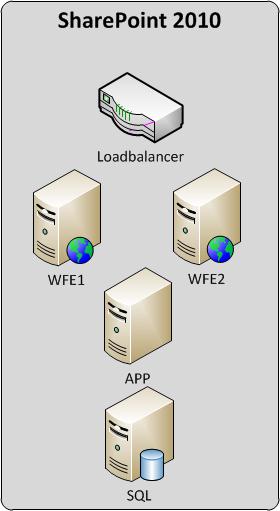
The graphic shows a typical server infrastructure for SharePoint 2010.
The Sharepoint search elements
Generally the search can be divided into three parts: Crawl, index and query.Crawl prepares the results by reading data contents and writes them (e.g. root word detection) into the index database. When a user uses the search function, the result is produced by the query-component with help of the index and the search databases. For that the query server is the interface of a search request to the index. Here, the requests are prepared and it is checked for example if the user at least has read-authorization on the document.
Distribution of the Sharepoint search components
The components of the search should “ideally” be distributed on the servers as follows:The most important SharePoint search component crawl is to be installed on the “App”-server. This is a mandatory requirement to be able to create the index. Because crawl generates a high CPU load, the “App” server should be equipped with respective CPUs. Should crawl take too much time or generate a load to high on the “App” server, an additional server should be integrated into the farm. The load will then automatically be divided by the crawl components and prevent one file from being processed simultaneously by more than one component.
Adding a crawling component
The administration-component is provided on the “App” server as well. It can only be provided on one server per “Search Service Application”.
The index is set up by the crawl component. It is recommended to distribute the index including the query component on at least two servers to reduce the index’ size and guarantee its reliability.
WFE1 = Index Partition 0 – Query Component | Index Partition 1 – Query Component (“Mirror”)
WFE2 = Index Partition 1 – Query Component | Index Partition 0 – Query Component (“Mirror”)
How to: Add an Index Partition
How to: Add a Query component
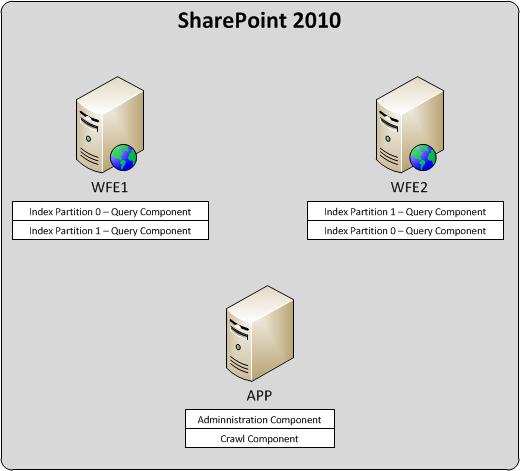
For the query topology I created the following PowerShell script in a current project.
Add-PSSnapin Microsoft.SharePoint.PowerShell -ea SilentlyContinue

$searchSA  = "SearchService"
$searchPropertyDBName = "SearchService_PropertyStoreDB"
$searchPropertyDBServer = "SQLSERVER.DOMAIN.COM"
$indexLocation = "C:\Program Files\Microsoft Office Servers\14.0\Data\Office Server\Applications"
$queryServer1 =  Get-SPEnterpriseSearchServiceInstance "WFE1"
$queryServer2 =  Get-SPEnterpriseSearchServiceInstance "WFE2"

$queryTopology = New-SPEnterpriseSearchQueryTopology -SearchApplication $searchSA -Partitions 2
$propertyDatabase = New-SPEnterpriseSearchPropertyDatabase -SearchApplication $searchSA -DatabaseName $searchPropertyDBName -DatabaseServer $searchPropertyDBServer $indexPartitions = Get-SPEnterpriseSearchIndexPartition -QueryTopology $queryTopology

$indexPartition1 = $indexPartitions[0]
$indexPartition1 | Set-SPEnterpriseSearchIndexPartition -PropertyDatabase $propertyDatabase
$indexPartition2 = $indexPartitions[1]
$indexPartition2 | Set-SPEnterpriseSearchIndexPartition -PropertyDatabase $propertyDatabase

Get-SPEnterpriseSearchQueryComponent  -QueryTopology $queryTopology
$queryComponent1 = New-SPEnterpriseSearchQuerycomponent -QueryTopology $queryTopology -IndexPartition $indexPartition1 -SearchServiceInstance $queryServer1
$queryComponent2 = New-SPEnterpriseSearchQuerycomponent -QueryTopology $queryTopology -IndexPartition $indexPartition2 -SearchServiceInstance $queryServer2

$mirrorQueryComponent1 = New-SPEnterpriseSearchQuerycomponent -QueryTopology $queryTopology -IndexPartition $indexPartition2 -SearchServiceInstance $queryServer1
$mirrorqueryComponent2 = New-SPEnterpriseSearchQuerycomponent -QueryTopology $queryTopology -IndexPartition $indexPartition1 -SearchServiceInstance $queryServer2

$queryTopology | Set-SPEnterpriseSearchQueryTopology -Active
Reference:
http://activedirectoryfaq.com/2014/09/sharepoint-search-components-and-search-topology/
Sunday, 7 December 2014
Subscribe to:
Posts (Atom)