Showing posts with label Search Service Application. Show all posts
Showing posts with label Search Service Application. Show all posts
Tuesday, 9 December 2014

How to search content from external locations in SharePoint 2010
Problem
With evolution of search, different kinds of requirements arise for searching content. One of the requirements we came across was that they wanted to search for content from external locations (i.e. like Google, YouTube and other public facing internet applications).Solution
SharePoint 2010 has a web part called "Federated Results". This searches content from the configured federated locations (like Google) that search content on provided parameters and generates output.In this article, we will be concentrating on how to search content from such external applications. For this article, we will take "YouTube" as an external location. To define a federated (external) location, go to Central Administration > Application Management > Service Applications > Manage Service Applications > Search Service Applications. Click on "Federated Locations" under "Queries and Results" category.

Add a new location. We will first fill the general information: Location name (Youtube), display name (Youtube) and description (any suitable description) which makes a location unique.

Moving ahead to the Location Information category, we need to select the protocol which we will search content (i.e either Search index on the server, Fast index or opentext 1.0/1.1). For our requirement to define the YouTube location, we will select the Opentext protocol.
We also need to provide one mandatory detail which is the Query Template - which mentions from which location we will search and what will be the search parameter.
For our requirement we need to mention, "http://www.youtube.com/rss/tag/{searchTerms}.rss" where "searchTerms" will be the content searched in search box. Optionally, we can also provide a link for "More Results" that will appear at the bottom of search (as shown in the image below).
Leave the rest of the options to defaults.
Click on OK and add location.

Perform a full incremental crawl after the location is created.
Now go to the web application > search center results page and add a web part named "Federated Results" from "Search" Categories.

Edit the Web Part properties and browse to the Location section under Location Properties. If everything above is performed accurately, an option named "Youtube" will appear. Select it and apply changes.

Now we will search some content like "Microsoft" and we could see that with the search core results, a column of search results appears on right side of the screen which provides search results related to "microsoft" from youtube.

By implementing a process this way, it can reduce overburden of configuration and management of searching from federated locations.
Next Steps
- Discover different external location and use the federated web part to make search simple and effective.
- Check some of these other articles at MSSharePointTips.com:
Reference:
http://www.mssharepointtips.com/tip.asp?id=1149&page=3
SharePoint Search Components and Search Topology
The search-component of SharePoint 2010 is one of the central ones and needs individual adaption after installation. When not individualizing the search, all components of the “search topology” will be installed on one server. Microsoft recommends distributing these components across servers to guarantee a load sharing and reliability.
With small to medium SharePoint farms the following servers are frequently existent.
SharePoint Search – Server Infrastructure Overview
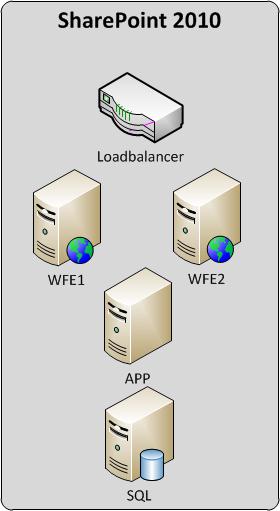
The graphic shows a typical server infrastructure for SharePoint 2010.
The Sharepoint search elements
Generally the search can be divided into three parts: Crawl, index and query.Crawl prepares the results by reading data contents and writes them (e.g. root word detection) into the index database. When a user uses the search function, the result is produced by the query-component with help of the index and the search databases. For that the query server is the interface of a search request to the index. Here, the requests are prepared and it is checked for example if the user at least has read-authorization on the document.
Distribution of the Sharepoint search components
The components of the search should “ideally” be distributed on the servers as follows:The most important SharePoint search component crawl is to be installed on the “App”-server. This is a mandatory requirement to be able to create the index. Because crawl generates a high CPU load, the “App” server should be equipped with respective CPUs. Should crawl take too much time or generate a load to high on the “App” server, an additional server should be integrated into the farm. The load will then automatically be divided by the crawl components and prevent one file from being processed simultaneously by more than one component.
Adding a crawling component
The administration-component is provided on the “App” server as well. It can only be provided on one server per “Search Service Application”.
The index is set up by the crawl component. It is recommended to distribute the index including the query component on at least two servers to reduce the index’ size and guarantee its reliability.
WFE1 = Index Partition 0 – Query Component | Index Partition 1 – Query Component (“Mirror”)
WFE2 = Index Partition 1 – Query Component | Index Partition 0 – Query Component (“Mirror”)
How to: Add an Index Partition
How to: Add a Query component
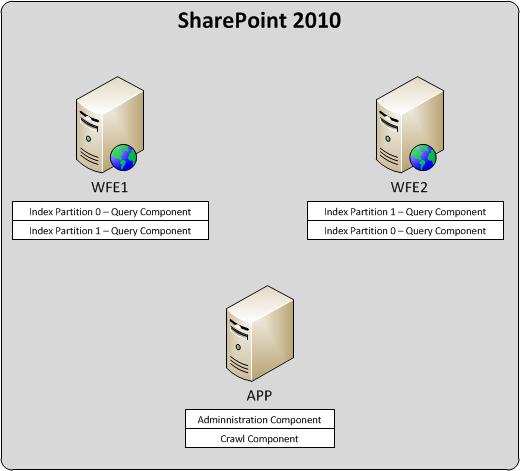
For the query topology I created the following PowerShell script in a current project.
Add-PSSnapin Microsoft.SharePoint.PowerShell -ea SilentlyContinue

$searchSA  = "SearchService"
$searchPropertyDBName = "SearchService_PropertyStoreDB"
$searchPropertyDBServer = "SQLSERVER.DOMAIN.COM"
$indexLocation = "C:\Program Files\Microsoft Office Servers\14.0\Data\Office Server\Applications"
$queryServer1 =  Get-SPEnterpriseSearchServiceInstance "WFE1"
$queryServer2 =  Get-SPEnterpriseSearchServiceInstance "WFE2"

$queryTopology = New-SPEnterpriseSearchQueryTopology -SearchApplication $searchSA -Partitions 2
$propertyDatabase = New-SPEnterpriseSearchPropertyDatabase -SearchApplication $searchSA -DatabaseName $searchPropertyDBName -DatabaseServer $searchPropertyDBServer $indexPartitions = Get-SPEnterpriseSearchIndexPartition -QueryTopology $queryTopology

$indexPartition1 = $indexPartitions[0]
$indexPartition1 | Set-SPEnterpriseSearchIndexPartition -PropertyDatabase $propertyDatabase
$indexPartition2 = $indexPartitions[1]
$indexPartition2 | Set-SPEnterpriseSearchIndexPartition -PropertyDatabase $propertyDatabase

Get-SPEnterpriseSearchQueryComponent  -QueryTopology $queryTopology
$queryComponent1 = New-SPEnterpriseSearchQuerycomponent -QueryTopology $queryTopology -IndexPartition $indexPartition1 -SearchServiceInstance $queryServer1
$queryComponent2 = New-SPEnterpriseSearchQuerycomponent -QueryTopology $queryTopology -IndexPartition $indexPartition2 -SearchServiceInstance $queryServer2

$mirrorQueryComponent1 = New-SPEnterpriseSearchQuerycomponent -QueryTopology $queryTopology -IndexPartition $indexPartition2 -SearchServiceInstance $queryServer1
$mirrorqueryComponent2 = New-SPEnterpriseSearchQuerycomponent -QueryTopology $queryTopology -IndexPartition $indexPartition1 -SearchServiceInstance $queryServer2

$queryTopology | Set-SPEnterpriseSearchQueryTopology -Active
Reference:
http://activedirectoryfaq.com/2014/09/sharepoint-search-components-and-search-topology/
Sunday, 23 November 2014
People Search in SharePoint 2010
People Search is one of the great and useful features of SharePoint 2010. By using people search feature of the SharePoint 2010 users can find their co-workers not just by their names, by their hobbies, interests, department, job title, knowledge and expertise as well.
In this blogbost I would like to show you how you can enable the SharePoint People Search web part and customize it. So let's get started.
If you have a brand new SharePoint 2010 farm or you have not configure the search in your SharePoint 2010 platform, this is something you need to take care first. Here is how:
- You need to visit the SharePoint central admin and locate your content sources under the search service application by clicking "Application Management", "Manage Service Applications", "Search Service Application" and "Content Sources".
- If this is a new instance you'll probable have one item called "Local SharePoint sites". Please click this content source and edit.
- In this page you need to make sure sps3://MySiteRoot item is in your start addresses list.
- You alse need to scheudle the full and incremental crawl in this page and check "Start full crawl of this content source" before clicking "Ok.
- At this time you'll see the following screen:

Once this is completed, now you can insert SharePoint 2010 People Search
Box web part into any page you desire. In my example I am placing the
web part right into the SharePoint home page.
- First you will edit the page by going "Site Actions", "Edit Page"

- Then you can select "Insert", "Web Part" by going "Editing Tools" ribbon.
- You will chose "People Search Box" web part under the "Search" category of web parts.

- Once the People Search Box web part is added tot he page then we can configure the web part selecting "Edit Web Part" from the web part drop down menu.
- While you are editing the web part, you can have scopes drop down menu and select which search scope you'd like to use and in which format. In this blog post since I will be showing the People Search, I am not including the "Scopes" drop down menu.
- You can configure the Query Text Box, by assigning a label, fixing it's size, and defining the text box prompt string.

- Query suggestions is a great way to display keyword suggestions to end-user while they are typing the query. These suggestion will be created automatically by SharePoint automatically based on certain number of click-throughs. There is a daily timer job scheduled to compile the suggestions. It is called "Prepare query suggestions" timer job and it is turned on by default. If you are testing the keyword suggestions, you probably don't have any suggestion compiled yet. You can add these suggestions manually with power shell scripts. here is an example:
$searchapp = Get-SPEnterpriseSearchServiceApplication -Identity "Search Service Application"
New-SPEnterpriseSearchLanguageResourcePhrase
-SearchApplication $searchapp -Language En-Us -Type
QuerySuggestionAlwaysSuggest -Name "Jeff Armstrong"
New-SPEnterpriseSearchLanguageResourcePhrase
-SearchApplication $searchapp -Language En-Us -Type
QuerySuggestionAlwaysSuggest -Name "John Smith"
New-SPEnterpriseSearchLanguageResourcePhrase
-SearchApplication $searchapp -Language En-Us -Type
QuerySuggestionAlwaysSuggest -Name "Jennifer McDonald"
Start-SPTimerJob -Identity "prepare query suggestions"

- There are many options to configure in miscellaneous section of the SharePoint People Search Box web part. Please refer to this TechNet article for further configuration options: Change properties for the Search Box Web Part (SharePoint Server 2010)
- Once it is configured you can save the web part and save and check-in the page you are editing. This is how it will look like on the page:

If you have done everything correctly and you have SharePoint publishing
features enabled you will get a "404-Page not found" error because
"peopleresults.aspx" does not exist in the Site Pages library. There are
a few ways to workaround this issue. One of them is to create people
results page manually. which is detailed in my other blog post called "People Search Results Return 404 - peopleresults.aspx is missing."
Here is how your results page will look like:

Here is how your results page will look like:

Reference:
http://sharepointtidbits.blogspot.in/2012/10/people-search-in-sharepoint-2010.html
Wednesday, 19 November 2014
Content Enrichment in SharePoint 2013
Searching for a particular word or phrase often yields hundreds and thousands of search results for users. The user can further filter the results with standard refiners like Location, People, Document Type, Year and so on. Adding more context-specific refinements will help the user further reduce the result set. SharePoint 2013 has enabled developers to add more context-specific refiners such that developers can modify the managed properties of crawled items before they are indexed by calling out to an external content enrichment web service.
The content enrichment web service is a SOAP-based service that a developer can create to receive a callout from the web service client inside the content processing component as shown in the figure below search architecture.

Figure 1: SharePoint 2013 Search Architecture
Content Enrichment Web Service Callout
A Web Service Callout allows us to receive information about managed properties that are being set up for the content that is currently being crawled. When you receive those managed properties into your web service callout you can modify information about the crawled properties and send it back into the Content Pipeline. This is useful when you need to perform some specific actions on these managed properties to modify them before they can get into the index.
The ability to modify managed properties for items during content processing is helpful when performing tasks such as:
- Data Cleansing
- Entity Extraction
- Classification and tagging
An example of when data cleansing is useful is as follows. In my company some people use the abbreviation TCS and others use Tata Consultancy Services in documents (Word, Excel and PowerPoint). I get two refiners in the search UI as these are considered separate companies. Let's say I want to show a single refiner Tata Consultancy Services in the search UI which should be able to filter document types referring to both terms. This is possible in SharePoint 2013. I can receive the Company Name managed property into the web service callout, modify the information where the company name is TCS to Tata Consultancy Services and send it back to the content pipeline so that the modified value gets into the index for the property Company Name.
Entity Extraction
In Fast Search there was a concept of entity extraction through extending the content process pipeline. You would create a custom property extractor that enables you to automatically extract entities or concepts from the visible text content of an item and map that to a managed property.
For example if I am dealing with data from a Finance sub site, I would like to add custom refiners such as Deal Price Range, Deal Status (Win, Loss, In-Progress) and so on but unfortunately that metadata is not available in SharePoint at this point. What we can do in SharePoint 2013 is create a new managed property called Deal Status and build a web service to populate the managed property values based on our custom business logic. The Deal Status managed property can then be used as a refiner on the search results page.
Classification and Tagging
Let's say you are getting Indian classical music to show in your SharePoint search page. In addition to the tags that are normally associated with music like Artist Name, Collection, Date, Category and so on you want to classify and add additional tags for suitable listening time such as Early Morning, Morning, Afternoon, Late Afternoon, Evening, Late Evening and Night. You can do so in SharePoint 2013 by extending the content pipeline. The following are the detailes of how to build and configure such a web service.
The steps to build and configure the Content Enrichment Web Service Callout
The following 5 steps are required to build and configure the web service callout:
- Create the managed property in Central Administration
- Create a WCF Web Service
- Refer Microsoft.Office.Server.Search.ContentProcessingEnrichment.dll
- Implement IContentProcessingEnrichmentService
- Configure the trigger conditions
- Configure the callout web service endpoint address, input and output managed properties.
- Execute a full crawl.
Navigate to Central Administration -> Search Service Application -> Search Schema -> New Managed Property.
- Property name: ListenTime
- Type: Text
- Searchable: checked
- Queryable: checked
- Retrievable: checked
- Refinable: Yes -" active
- Token Normalization: checked
Create a WCF Service Application and add a reference to the Microsoft.Office.Server.Search.ContentProcessingEnrichment assembly.
The ProcessItem method processes the received Item and returns the result as a ProcessedItem.
In the ProcessItem method write code to read the Property AlbumTitle and compare the property value as shown in the Dictionary object below and populate the new property ListenTime.
private Dictionary<string, string> raagListenTime = new Dictionary<string, string>() {
{" Ahir Bhairav ", "Early Morning"},
{" Gujari Todi ", "Morning"},
{" Todi ", "Morning"},
{"Maand", "Afternoon"},
{"Bhimpalasi ", " Afternoon "},
{" Shadja ", "Twilight"}
{" Thumri ", "Night"}
{" Dhun ", "Evening"} };
This dictionary can keep expanding. This is an example to give you the idea of processing the input property to corresponding output property. You can write your own custom logic. Details on How to: Use the Content Enrichment web service callout for SharePoint Server is available in MSDN.
Configure Trigger Conditions and other properties
To minimize the performance impact of the web service callout, we only want it to be called under certain conditions; this condition is defined in the Trigger property. It is done using PowerShell commands. The expected input and output managed properties are configured via the InputProperties and OutputProperties.
Execute Full Crawl
Launch the service createad earlier and execute the full crawl. Once the crawl is complete, the ListenTime managed property should be populated and searchable. You can also modify the refinement panel to add this new property.
Error handling is configurable either to warn or fail the web service in case of error.
Point to note is that the web service client works with managed properties that you can configure as input properties or as output properties. Input properties are managed properties that are sent to the web service; output properties are managed properties returned by the web service.
Reference:
http://www.c-sharpcorner.com/UploadFile/d2ee01/content-enrichment-in-sharepoint-2013/
What is New in SharePoint 2013 Search
Search functionality in SharePoint 2013 Preview includes several enhancements including custom content processing with the Content Enrichment web service, and a new framework for presenting search result types. There have been significant enhancements made to the keyword query language. Search is a scorching topic within SharePoint 2013, the following is a summary of some of the search enhancements.
Content Search Web Part
In many ways this can be considered as the next generation of the previous Content Query Web Part. The Content Search Web Part displays content that was crawled and added to the search index. We can use category pages when we want to collect content that meets certain criteria or parameters. To understand correctly, take the example of an intranet scenario, all company events are maintained in a list that is shared as a catalogue. A query is issued from the Content Search Web Part to return all items from the search indexes that are specified in the query.
User interface improvements
In SharePoint 2013, without having to open each search result, users can quickly identify useful results in many ways.
- Users can hover the pointer over a search result to preview the document content in the hover panel to the right of the result.
- Users can quickly distinguish search results based on document types. For example, for Microsoft Office documents, the application icon is displayed in front of the title of the search result. We can customize it to add more icons
- By default, certain types of related results are displayed in groups called result blocks. A result block contains a small subset of results that are related in a particular way. For example, results that are PowerPoint documents appear in a result block when the word presentation is one of the search terms.
- Search is personalized to each user. For example, results that the user previously clicked appear in query suggestions and are promoted in the result ranking, so that the user can find documents more quickly.
A search result, suggestion, or recommendation is more relevant when it better satisfies the intent of the person who issues the query. SharePoint Server 2013 improves relevance in areas such as cleanness of search results, phonology, and document parsing. We can discuss each one in detail.
New ranking models
SharePoint Server 2013 provides new ranking models for people search, intranet sites, and Internet sites. A ranking model determines and rank.
Content Analysis and user interaction
The search system determines the relevance of search results in part by how content is connected, how often an item appears in search results, and which search results people click. The new analytics component in SharePoint Server 2013 tracks and analyzes this information and uses it to continuously improve relevance.
Based on analytics information, site collection administrators and site owners can customize the user experience by adding Web Parts to display recommendations and popular items.
Query rules
Without any custom code, Search service administrators, site collection administrators, and site owners can help searches respond to the intent of users by creating query rules. In a query rule, you specify conditions and correlated actions. When a query meets the conditions in a query rule, the search system performs the specified actions to improve the relevance of the search results.
Result sources
In SharePoint Server 2010, scopes and federated locations provided ways to limit searches to a certain set of content or subset of search results. In SharePoint Server 2013, result sources replace scopes and federated locations. You create and use a result source to specify a location from which to get search results and to specify a protocol for getting those results.
Crawling Improvements
SharePoint Server 2013 includes many changes and improvements related to crawling content.
Continuous crawl
In SharePoint Server 2013, you can configure crawl schedules for SharePoint content sources so that crawls are performed continuously. Setting this option eliminates the need to schedule incremental crawls and automatically starts crawls as necessary to keep the search index fresh.
Host distribution rules removed
SharePoint Server 2013 does not use host distribution rules. Instead, Search service application administrators can determine whether the crawl database should be rebalanced by monitoring the Databases view in the crawl log.
Removing items from the search index
In SharePoint Server 2010, Search service application administrators could remove items from the search index by using Search Result Removal. In SharePoint Server 2013, you can remove items from the search index only by using the crawl logs.
Discovering Contents from unstructured content
We can configure the crawler to look for entities in unstructured content, such as in the body text or the title of a document. These entities can be words or phrases, such as product names. To specify which entities to look for in the content, you can create and deploy your own dictionaries. For companies, you can use the pre-populated company extraction dictionary that SharePoint Server 2013 provides.
Improved search schema
By defining crawled properties, managed properties, and the mappings among them, the search schema determines how the properties of crawled content are saved to the search index. Crawled properties and how these are mapped to managed properties define how to transform crawled content into managed properties. The search index stores the contents of the managed properties. The attributes of the managed properties determine the search index structure. SharePoint Server 2013 introduces new attributes that you can apply to managed properties, such as sortable and refinable. The sortable attribute reduces the time that is required to return large search result sets by sorting results before they are returned. The refinable attribute enables you to create a refiner based on a particular managed property.
Search health reports
SharePoint Server 2013 provides many query health reports and crawl health reports.
For a better search experience please consider the following points while you design the farm:

Small Search farm with dedicated Search
The following farm architecture diagram illustrates only the search components and can serve as a dedicated search farm for one or more SharePoint farms. Dedicated search farms do not include Web servers.

For more details please read the following MSDN article http://technet.microsoft.com/en-us/library/jj219669(v=office.15)
Related Articles
Reference:
http://www.c-sharpcorner.com/UploadFile/Roji.Joy/what-is-new-in-sharepoint-2013-search/
Search Engine Changes in SharePoint 2013
In this article, I have tried to capture the major changes between the SharePoint 2013 and SharePoint 2010 search engines.
| SharePoint 2013 | SharePoint 2010 | |
| Code Base | The Search engine is a combination of SharePoint and FAST search engines (single code base) hence advanced capabilities that were earlier available for FAST Search deployments will now be available to SharePoint deployments. |
There
are two product lines – SharePoint Search and FAST Search (the code
bases are different). Examples of capabilities specific to the FAST
Search for SharePoint are:
|
| Logical Architecture |
Addition of Content Processing, and Analytics Components. The components are:
The Search Administrator component runs many system processes required for search, is responsible for search provisioning and topology changes and coordinates search components – Content Processing, Query Processing, Analytics, and Indexing. |
Crawler component was responsible for content/document processing. The components are:
Administration is done through the Central Administration site.
|
| Crawling |
Anonymous crawling of http sites is possible.
Continuous
crawl for SharePoint content sources is available. Because of changes
in how the index is created and stored, a document can appear in the
index within seconds of going through the content processing component.
| The Waiting period is long for index to merge and show results. |
| Result Sources |
Specify a location to get search results from and specify a protocol for getting those results.
|
Functionality available by Federated Search and Scopes.
|
| Analysis Engine |
Run time analysis engine for a variety of jobs including ranking algorithms and recommendations.
Search Analytics
Usage Analytics
| Web Analytics in Central Administration provides usability reports and administration reports that mentions latency, crawl throughput and so on. |
| End-User Experience |
Direct
access to the most granular information inside of sites and documents,
and then enables users to act on the results without having to leave the
results page.
Every
search box in every team site offers full access to enterprise-wide
search, people search, and other specialized search experiences in
addition to the traditional scoped site search
| A user enters a set of search terms on a search center homepage that are treated as keywords, and the results are a single ranked list of links with three-line summaries and a little metadata. |
| Hover Panel |
New in SharePoint 2013.
Shows
visual previews of sites, documents, and conversations. A new set of
actions that users can perform right on the search result. For example,
following a document, leaping right into Edit mode, or sharing or
opening the library the document is stored in to see what other content
is available.
| Not Applicable |
| UI Framework |
The
UI framework that supports all these new features is re-designed. It is
based on a set of nested layout templates that are defined in
JavaScript and HTML for much easier extensibility.
|
SharePoint
Server 2010 includes many search-related web parts for power users to
create customized search experiences, including Best Bets, refinement
panel extensions, featured content, and predefined queries.
|
| Expertise Search | Document Authors are identified as experts based on the content mentioned in the document (Word, PowerPoint, PDF). | My Site profiles identifies expert in an area. |
| People Search | People Search is integrated with core results. People search can be targeted by name, location, phone number and other properties. | People Search is independent of document search. |
| Managed Properties | Organization specific dictionaries with custom entities can be mapped to managed properties. | |
| Results Rendering Approach | Asynchronous client-side approach. | Server based rendering approach. |
| Query Rules |
Query Rules are a new feature in SharePoint 13 that help act upon the "intent" of a query.
Query Rules are composed of three top level elements:
Query Conditions (i.e. matching rules), Query Actions (i.e. what do you do when you find a match).
Publishing Options (i.e. when should this rule be active).
Query Rules allows to have search requests from a user trigger multiple queries and multiple result sets.
| Simple queries – one query has one set of results. |
| Document Parsing |
New parsing features:
| Document detection relies on file extensions |
Related Articles
Reference:
http://www.c-sharpcorner.com/UploadFile/d2ee01/search-engine-changes-in-sharepoint-2013/
SharePoint 2010 - Search
In this article we can explore one of the core features of SharePoint. It is considered to be the Enterprise Feature of SharePoint. SharePoint allows configuration of searches based on various parameters. In short we can configure the breadth and depth of the search.
Search Architecture
Internally, SharePoint 2010 Search is a service application. The Search Engine can Index SharePoint Sites, External contents, Files, Web sites etc.
The following are the server roles inside the SharePoint Search:
- Crawler
- Indexer
- Query Servers
- Search Center
The Indexer will create index files which contains the words and corresponding content source information for easier access. The indexing server can be configured to be a separate machine in a farm.
As the crawler will be encountering many file types like Word Document, PDF Document, Excel Document, Web sites, Text Files etc. it will be run out of logic on indexing these. We need to specify external Index Filters to tell how to index those file types. These Index Filters are also known as IFilter. The IFilter reads the contents of the file, creates the index keywords based on the content. Administrators need to configure each file type with an appropriate IFilter.
The Query Server is responsible for handling user search queries. In a farm environment query server can be configured to be a separate machine. The query serve operates on the index files for returning search results.
Search Center is a site inside SharePoint 2010 oriented towards Search. It allows configuring of Results, Advanced Search options, Navigation Elements etc. The user can create his own Search Site by using the Basic Search Center template.
Experimenting with Search
Now we can start experimenting with the Search User Interface and the functionality. The default Search box is available on the site as shown below:

Now we can try searching some text. Enter the address word of a contact and click the search button.

You will see the following results showing the data from Manager List and Edit form.

The search result fetched the contents of all list items inside the site. Now we can try searching with keyword Manager. The result will include the Manager list item name too.

References
http://technet.microsoft.com/en-us/sharepoint/ee518667
http://technet.microsoft.com/en-us/library/cc263144%28office.12%29.aspx
http://msdn.microsoft.com/en-us/library/ms545957%28v=office.12%29.aspx
Summary
In this article we have learned the search feature of SharePoint. Although Search is configured by SharePoint Administrators, still the developer can use the extended Search web services, programmatic retrieval of content using Object Model etc.
Reference:
http://www.c-sharpcorner.com/UploadFile/40e97e/sharepoint-2010-search/
Manage Search Scope in Sharepoint 2010
In this article we can experiment with managing search scope.
Search Scope allows the user to search within a particular scope. By default SharePoint provides an entire site collection search. If the user knows the search item is within a file system, he/she can specify the scope to narrow the search results. This will allow faster location of the context item.
The default search scope is All Sites.
Adding a new Search Scope
- Open SharePoint Central Administration > Manage Service Applications > Search Service Application page:
- Click on the Scopes link as highlighted above
- Click on the New Scope link from the page that appears. Enter the details as shown below and click the OK button:
- Click the Add rules for our newly created scope as shown below:
- Set the properties as shown below (Pointing to our File System Content Source):
Click the OK button to continue. Now we are ready with a Scope set with rules. But in order to view the scope in Search drop down list, we need to do the following steps.
- Click Search Administration > Start Updating Now link as shown below:
- Now open our default SharePoint site and open the Site Settings > Search scopes:
- Click the Display Groups button from the top bar as shown below:
- Select the Edit Display Group option as shown below:
- Select the File System Scope and click the OK button:


Now the Search Scope is ready within our site. You can experiment with it by opening a site and selecting the scope from the scope drop-down list.

References
http://office.microsoft.com/en-us/sharepoint-server-help/managing-search-scopes-HA001160438.aspx
Summary
In this article we can experiment with the capability of SharePoint to manage search scopes. In a real-world scenario Administrators need to configure various search scopes for various site collections.
Reference:
http://www.c-sharpcorner.com/UploadFile/40e97e/manage-search-scope-in-sharepoint-2010/
Search Scopes in SharePoint 2010
In this article we will be seeing about search scopes in SharePoint 2010.|
In this article:
- Get all the search scopes
- Modify a search scope
- Delete a scope
- Get all the rule types of a particular scope
- Create a custom scope
- Create All content rule
using System;
using System.Collections.Generic;
using System.Linq;
using System.Text;
using Microsoft.SharePoint;
using Microsoft.Office.Server;
using Microsoft.Office.Server.Search.Administration;
namespace
SearchScopes
{
class Program
{
static void Main(string[] args)
{
string ssa = "Search Service Application";|
SearchContext searchContext = SearchContext.GetContext(ssa);
Scopes scopes = new Scopes(searchContext);
foreach (Scope scope in scopes.GetSharedScopes())
{
Console.WriteLine(scope.Name);
}
Console.ReadLine();
}
}
}

Modify a search scope:
using System;
using System.Collections.Generic;
using System.Linq;
using System.Text;
using Microsoft.SharePoint;
using Microsoft.Office.Server;
using Microsoft.Office.Server.Search.Administration;
{
class Program
{
static void Main(string[] args)
{
string ssa = "Search Service Application";|
SearchContext searchContext = SearchContext.GetContext(ssa);
Scopes scopes = new Scopes(searchContext);
foreach (Scope scope in scopes.GetSharedScopes())
{
Console.WriteLine(scope.Name);
}
Console.ReadLine();
}
}
}
Modify a search scope:
using System;
using System.Collections.Generic;
using System.Linq;
using System.Text;
using Microsoft.SharePoint;
using Microsoft.Office.Server;
using Microsoft.Office.Server.Search.Administration;
namespace
SearchScopes
{
class Program
{
static void Main(string[] args)
{
string ssa = "Search Service Application";
SearchContext searchContext = SearchContext.GetContext(ssa);
Scopes scopes = new Scopes(searchContext);
Scope scope = scopes.GetSharedScope("B");
scope.Name = "BNew";
scope.Description = "Modified scope";
scopes.Update();
}
}
}

Delete a scope:
using System;
using System.Collections.Generic;
using System.Linq;
using System.Text;
using Microsoft.SharePoint;
using Microsoft.Office.Server;
using Microsoft.Office.Server.Search.Administration;
{
class Program
{
static void Main(string[] args)
{
string ssa = "Search Service Application";
SearchContext searchContext = SearchContext.GetContext(ssa);
Scopes scopes = new Scopes(searchContext);
Scope scope = scopes.GetSharedScope("B");
scope.Name = "BNew";
scope.Description = "Modified scope";
scopes.Update();
}
}
}
Delete a scope:
using System;
using System.Collections.Generic;
using System.Linq;
using System.Text;
using Microsoft.SharePoint;
using Microsoft.Office.Server;
using Microsoft.Office.Server.Search.Administration;
namespace
SearchScopes
{
class Program
{
static void Main(string[] args)
{
string ssa = "Search Service Application";
SearchContext searchContext = SearchContext.GetContext(ssa);
Scopes scopes = new Scopes(searchContext);|
Scope scope = scopes.GetSharedScope("A");
scope.Delete();
}
}
}
Get all the rule types of a particular scope:
using System;
using System.Collections.Generic;
using System.Linq;
using System.Text;
using Microsoft.SharePoint;
using Microsoft.Office.Server;
using Microsoft.Office.Server.Search.Administration;
{
class Program
{
static void Main(string[] args)
{
string ssa = "Search Service Application";
SearchContext searchContext = SearchContext.GetContext(ssa);
Scopes scopes = new Scopes(searchContext);|
Scope scope = scopes.GetSharedScope("A");
scope.Delete();
}
}
}
Get all the rule types of a particular scope:
using System;
using System.Collections.Generic;
using System.Linq;
using System.Text;
using Microsoft.SharePoint;
using Microsoft.Office.Server;
using Microsoft.Office.Server.Search.Administration;
namespace
SearchScopes
{
class Program
{
static void Main(string[] args)
{
string ssa = "Search Service Application";
SearchContext searchContext = SearchContext.GetContext(ssa);
Scopes scopes = new Scopes(searchContext);
Scope scope = scopes.GetSharedScope("BNew");
foreach (ScopeRule rule in scope.Rules)
{
Console.WriteLine(rule.RuleType.ToString());
}
Console.ReadLine();
}
}
}

Create a custom scope:
using System;
using System.Collections.Generic;
using System.Linq;
using System.Text;
using Microsoft.SharePoint;
using Microsoft.Office.Server;
using Microsoft.Office.Server.Search.Administration;
{
class Program
{
static void Main(string[] args)
{
string ssa = "Search Service Application";
SearchContext searchContext = SearchContext.GetContext(ssa);
Scopes scopes = new Scopes(searchContext);
Scope scope = scopes.GetSharedScope("BNew");
foreach (ScopeRule rule in scope.Rules)
{
Console.WriteLine(rule.RuleType.ToString());
}
Console.ReadLine();
}
}
}
Create a custom scope:
using System;
using System.Collections.Generic;
using System.Linq;
using System.Text;
using Microsoft.SharePoint;
using Microsoft.Office.Server;
using Microsoft.Office.Server.Search.Administration;
namespace
SearchScopes
{
class Program
{
static void Main(string[] args)
{
string ssa = "Search Service Application";
SearchContext searchContext = SearchContext.GetContext(ssa);
Scopes scopes = new Scopes(searchContext);
Scope newScope = scopes.AllScopes.Create("CustomScope", "Custom Scope", null, true, null, ScopeCompilationType.AlwaysCompile) scopes.Update();
}
}
}

Create All content rule:
using System;
using System.Collections.Generic;
using System.Linq;
using System.Text;
using Microsoft.SharePoint;
using Microsoft.Office.Server;
using Microsoft.Office.Server.Search.Administration;
{
class Program
{
static void Main(string[] args)
{
string ssa = "Search Service Application";
SearchContext searchContext = SearchContext.GetContext(ssa);
Scopes scopes = new Scopes(searchContext);
Scope newScope = scopes.AllScopes.Create("CustomScope", "Custom Scope", null, true, null, ScopeCompilationType.AlwaysCompile) scopes.Update();
}
}
}
Create All content rule:
using System;
using System.Collections.Generic;
using System.Linq;
using System.Text;
using Microsoft.SharePoint;
using Microsoft.Office.Server;
using Microsoft.Office.Server.Search.Administration;
namespace
SearchScopes
{
class Program
{
static void Main(string[] args)
{
string ssa = "Search Service Application";
SearchContext searchContext = SearchContext.GetContext(ssa);
Scopes scopes = new Scopes(searchContext);
Scope scope = scopes.GetSharedScope("BNew");
scope.Rules.CreateAllContentRule();
scope.Update();
}
}
}

{
class Program
{
static void Main(string[] args)
{
string ssa = "Search Service Application";
SearchContext searchContext = SearchContext.GetContext(ssa);
Scopes scopes = new Scopes(searchContext);
Scope scope = scopes.GetSharedScope("BNew");
scope.Rules.CreateAllContentRule();
scope.Update();
}
}
}
Reference:
http://www.c-sharpcorner.com/uploadfile/anavijai/search-scopes-in-sharepoint-2010/
Using powershell create, modify and delete search scope display group in SharePoint 2010
In this article
we will be seeing how to create, modify and delete scope display group
using powershell script in SharePoint 2010.
Create scope display group:
In the SharePoint site you can create a new display group for the search scope and associate the scope with the group.
Through
UI you can go to Site Actions => Site Settings =>Site
Administration => Search Scopes => Display group => Create a
new display group.


The same thing can be achieved using powershell script
$siteURL="http://servername:1111/"
$site=get-spsite $siteURL
$displayName="CustomDisplayGroup"
$displayDescription="Custom Display Group"
$owningSiteURL=New-Object System.Uri($site.URL)
$displayInAdminUI=$true
$scope1="CustomSiteScope"
$scope2="CustomScope"
$defaultScope=$scope2
$searchContext=[Microsoft.Office.Server.Search.Administration.SearchContext]::GetContext($site)
$scopes=New-Object Microsoft.Office.Server.Search.Administration.Scopes($searchContext)
$displayGroupColl=$scopes.AllDisplayGroups
$displayGroup=$displayGroupCOll.Create($displayName,$displayDescription,$owningSiteURL,$displayInAdminUI)
$displayGroup.Add($scopes.GetSharedScope($scope1))
$displayGroup.Add($scopes.GetSharedScope($scope2))
$displayGroup.Default=$scopes.GetSharedScope($defaultScope)
$displayGroup.Update()
Modify scope display group:
Here we will be modifying the existing display group using powershell script.
$siteURL="http://servername:1111/"
$site=get-spsite $siteURL
$displayName="CustomDisplayGroup"
$newDisplayName="CustomDisplayGroupNew"
$newDisplayDescription="Custom Display Group New"
$owningSiteURL=New-Object System.Uri($site.URL)
$displayInAdminUI=$true
$removeScope="CustomSiteScope"
$addScope="BNew"
$searchContext=[Microsoft.Office.Server.Search.Administration.SearchContext]::GetContext($site)
$scopes=New-Object Microsoft.Office.Server.Search.Administration.Scopes($searchContext)
$displayGroup=$scopes.GetDisplayGroup($owningSiteURL,$displayName)
$displayGroup.Name=$newDisplayName
$displayGroup.Description=$newDisplayDescription
$displayGroup=$displayGroupCOll.Create($displayName,$displayDescription,$owningSiteURL,$displayInAdminUI)
$displayGroup.Remove($scopes.GetSharedScope($removeScope))
$displayGroup.Add($scopes.GetSharedScope($addScope))
$displayGroup.Update()

Delete scope display group:
$siteURL="http://servername:1111/"
$site=get-spsite $siteURL
$displayName="CustomDisplayGroupNew"
$searchContext=[Microsoft.Office.Server.Search.Administration.SearchContext]::GetContext($site)
$scopes=New-Object Microsoft.Office.Server.Search.Administration.Scopes($searchContext)
$displayGroup=$scopes.GetDisplayGroup($owningSiteURL,$displayName)
$displayGroup.Delete()
Reference:
http://www.c-sharpcorner.com/uploadfile/anavijai/using-powershell-create-modify-and-delete-search-scope-display-group-in-sharepoint-2010/
Create Scopes in SharePoint 2010 using PowerShell
In this article we will be seeing how to create Scopes in a SharePoint 2010 Enterprise Search Service Application using PowerShell.
Automating the Scopes creation in SharePoint 2010
We can create Scopes in a SharePoint 2010 Enterprise Search Service Application from Central Administration.
Go to Central Administration => Application Management => Manage Service Applications => Enterprise Search Service Application.

On the Quick Launch Menu, go to Queries and Results then click on Scopes.

You should be able to see the Scopes. By clicking on New Scope link we can create a new Scope.
Another way is we can create the Search Scopes in SharePoint 2010 using SharePoint Object Model.
Here we will be seeing about automating the Scopes creation using a powershell script.
Steps Involved:
- Create the input XML file which contains the inputs for Scope creation.
- Create ps1 file which contains the script for scope creation.
<?xml version="1.0" encoding="utf-8" ?>
<Scopes>
<SSAName>EnterPrise Search Service Application</SSAName>
<Scope Name="Sample1" Description="Sample1 Scope" />
<Scope Name="Sample2" Description="Sample2 Scope" />
<Scope Name="Sample3" Description="Sample3 Scope" />
</Scopes>
CreateScopes.ps1
#----------------Get the xml file---------------------------------------------------------------
[xml]$xmlData=Get-Content
"C:\Users\Desktop\ContentSources\CreateScopes.xml"
#----------------Create
New Scope function---------------------------------------------
Function
CreateNewScope()
{
$ssa=Get-SPEnterPriseSearchServiceApplication -Identity $xmlData.SSAName
$scopeCollection=Get-SPEnterpriseSearchQueryScope -SearchApplication $ssa
$xmlData.Scopes.Scope | ForEach-Object {
$newScopeName=$_.Name
$newScopeDescription=$_.Description
$scope=Get-SPEnterpriseSearchQueryScope -Identity $newScopeName -SearchApplication $ssa
if($scope -eq $null)
{
write-host -f Magenta Creating scope $_.scope
New-SPEnterpriseSearchQueryScope -Name $newScopeName -Description $newScopeDescription -SearchApplication $ssa -DisplayInAdminUI $true
write-host -f Green $newscope.Name is created successfully
}
else
{
write-host -f yellow $newScopeName scope already exists
write-host -f yellow Deleting $newScopeName scope
Remove-SPEnterpriseSearchQueryScope -Identity $newScopeName -SearchApplication $ssa -confirm:0
write-host -f green $newScopeName scope is deleted successfully
write-host -f Magenta Creating $newScopeName scope
New-SPEnterpriseSearchQueryScope -Name $newScopeName -Description $newScopeDescription -SearchApplication $ssa -DisplayInAdminUI $true
write-host -f green $newScopeName scope is successfully created
}
}
}
#----------------Calling the function---------------------------------------------
CreateNewScope
Run the Script:
{
$ssa=Get-SPEnterPriseSearchServiceApplication -Identity $xmlData.SSAName
$scopeCollection=Get-SPEnterpriseSearchQueryScope -SearchApplication $ssa
$xmlData.Scopes.Scope | ForEach-Object {
$newScopeName=$_.Name
$newScopeDescription=$_.Description
$scope=Get-SPEnterpriseSearchQueryScope -Identity $newScopeName -SearchApplication $ssa
if($scope -eq $null)
{
write-host -f Magenta Creating scope $_.scope
New-SPEnterpriseSearchQueryScope -Name $newScopeName -Description $newScopeDescription -SearchApplication $ssa -DisplayInAdminUI $true
write-host -f Green $newscope.Name is created successfully
}
else
{
write-host -f yellow $newScopeName scope already exists
write-host -f yellow Deleting $newScopeName scope
Remove-SPEnterpriseSearchQueryScope -Identity $newScopeName -SearchApplication $ssa -confirm:0
write-host -f green $newScopeName scope is deleted successfully
write-host -f Magenta Creating $newScopeName scope
New-SPEnterpriseSearchQueryScope -Name $newScopeName -Description $newScopeDescription -SearchApplication $ssa -DisplayInAdminUI $true
write-host -f green $newScopeName scope is successfully created
}
}
}
#----------------Calling the function---------------------------------------------
CreateNewScope
Run the Script:
- Go to Start.
- Click on All Programs.
- Click on Microsoft SharePoint 2010 Products and then click on SharePoint 2010 Management Shell.
- Run the C:\Users\Desktop\ContentSources\CreateScopes.ps1
Output:

And in the Central Administration you could see the newly added Scopes as shown in the following

And in the Central Administration you could see the newly added Scopes as shown in the following
Reference:
http://www.c-sharpcorner.com/uploadfile/anavijai/create-scopes-in-sharepoint-2010-using-powershell/
Subscribe to:
Posts (Atom)