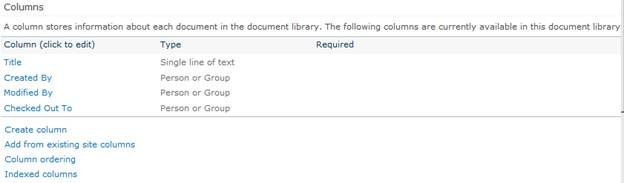
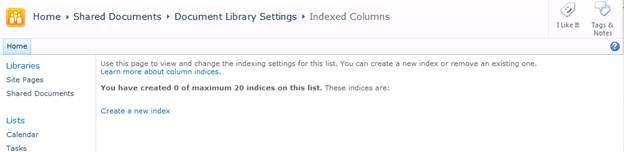
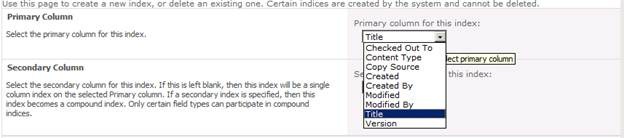
List throttling is one of the new options in SharePoint 2010 that enable to set limits on how severely users can put the beat down on your servers. In a nutshell, what it does is allow you to set a limit for how many rows of data can be retrieved for a list or library at any one time. The most basic example of this would be if you had a list with thousands of items, and someone created a view that would return all of the items in the list in a single page. List throttling ensures that such a request would not be allowed to execute. The hit on the server is alleviated, and the user gets a nice little message that says sorry, we can’t retrieve all of the data you requested because it exceeds the throttle limit for this list.
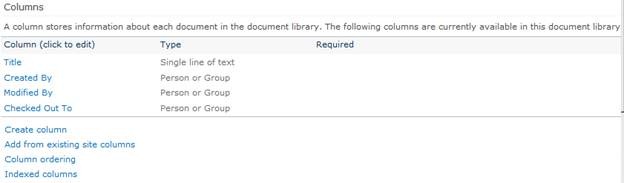
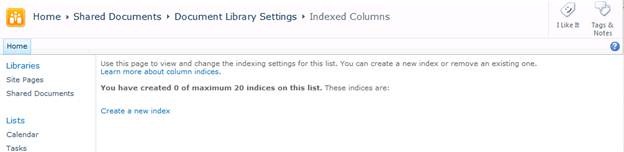
The kinds of operations that can trigger hitting this limit though aren’t limited to viewing data – that’s just the easiest example to demonstrate. There are other actions that can impact a large number of rows whose execution would fall into the list throttle limits. For example, suppose you had a list with 6000 items and a throttle limit of 5000. You create a view that only displays 50 items at a time, but it does a sort on a non-indexed column. Behind the scenes, this means that we need to sort all 6000 items and then fetch the first 50. If you are going to delete a web with large flat lists you potentially have the same problem. We need to select all of the items for all of the lists as part of the site deletion, so we could again hit the throttling limit. These are just a few examples but you can start to imagine some of the others.
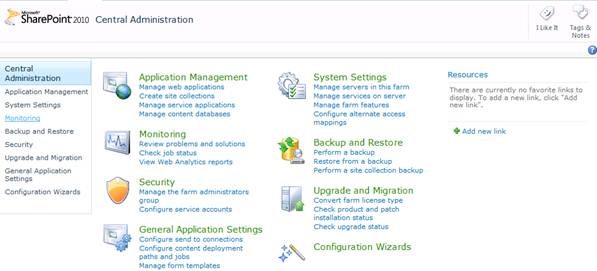
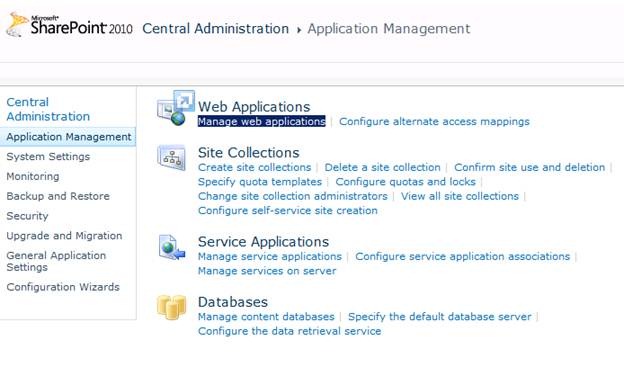
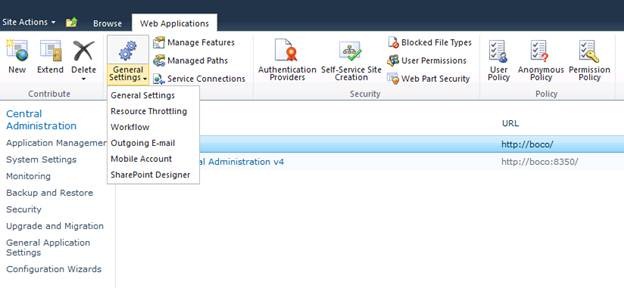
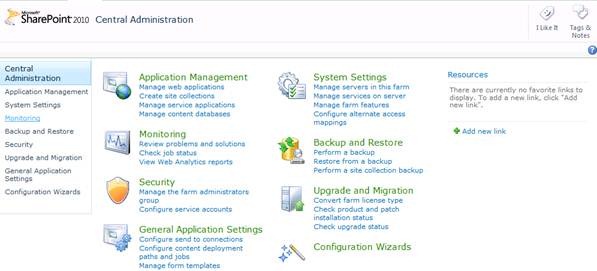
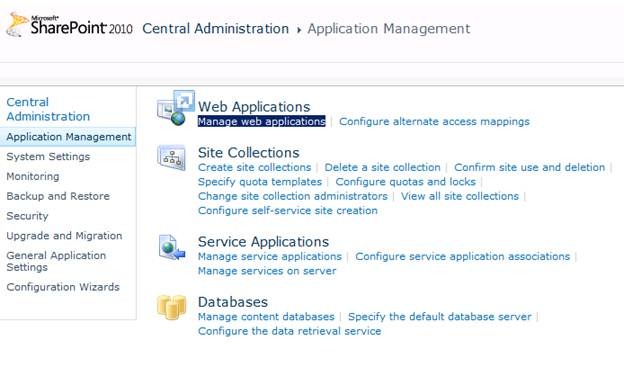
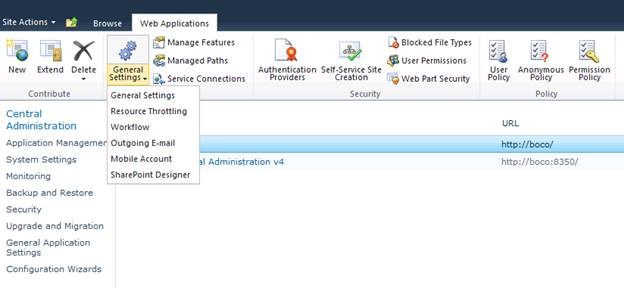
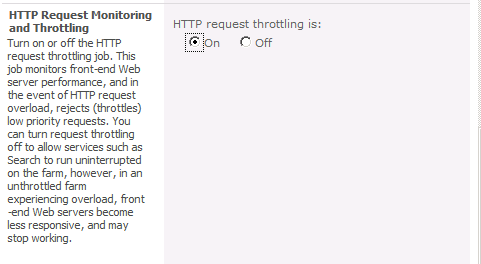
So how does this work and how do we manage it? It all starts in central admin. List throttling is an attribute that you will generally manage at the web application level. So if you go into Central Admin, click on Application Management, then click on Manage Web Applications. Click a single web application to select it, then in the ribbon click on the General Settings drop down and select the Resource Throttling menu item. It displays a dialog with the several options; I’ll only cover the ones related to list item throttling in this blog:
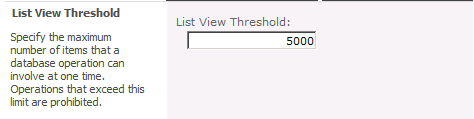
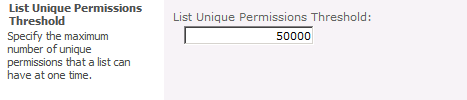
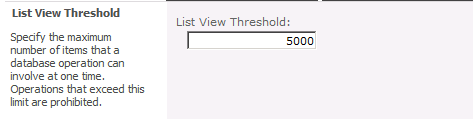
· List View Threshold – this is the maximum number of items that can be retrieved in one request. The default value is 5,000. Important to note as well, the smallest you make this value is 2,000.
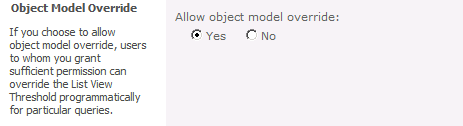
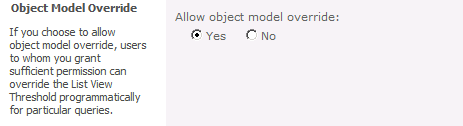
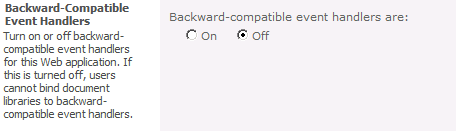
· Object Model Override – as described above, this option needs to be enabled in order to enable super users to retrieve items through the object model, up to the amount defined in the List query size threshold for auditors and administrators.
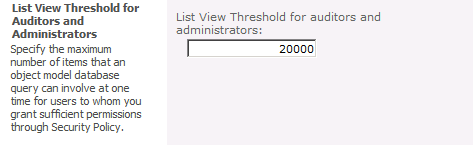
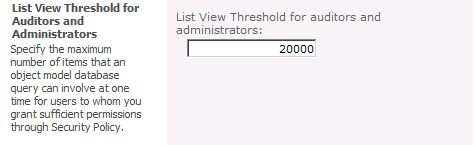
· List View Threshold for Auditors and Administrators – this is a special limit for “super users”. It is important to understand that this DOES NOT allow these super users to see more items in a list view. This property is used in conjunction with the Allow object model override property described below. That means that if the Allow object model override property is set to Yes, then these super users can retrieve up to the number of items set in this property, but only via the object model. The way you become a “super user” is a farm admin creates a web application policy for you that grants you rights to a permission level that includes either the Site Collection Administrator and/or Site Collection Auditor rights. By default both the Full Read and Full Control permission levels include these rights, and you can create your own custom policy permission levels that do as well. Creating this policy is done the same way as it was in SharePoint 2007.
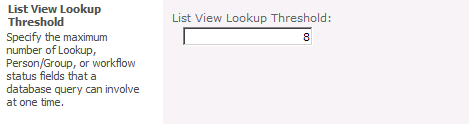
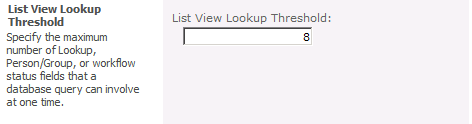
· List View Lookup Threshold – again, nothing to do with the maximum number of rows returned from a list but it’s right in the middle of these so I couldn’t leave it out. This one is self-explanatory I think.
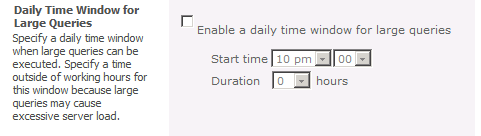
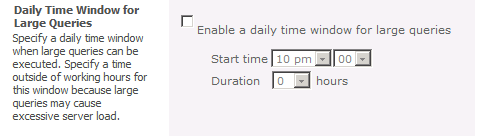
· Daily Time Window for Large Queries – this option allows you to create a block of time during the day, typically when usage is low, that you will allow queries to run and not enforce the list throttling limits. The one thing to remember here is that if you execute a query during that time period, it will run until complete. So if it’s still running when the daily window period closes, the query will continue to execute until all results have been returned.
There are a couple of additional exceptions to the information above:
1. If you are box administrator on the WFE where the data is being requested, and you have at least Read rights to the list data, then you will see ALL the rows. That means if you have 10,000 rows in a list and you execute a query or view that has no filters, you will get back all 10,000 rows.
2. In the object model a list (and library) is represented by the SPList class. It has a new property in SharePoint 2010 called EnableThrottling. On a list by list basis you can set this property to false. When you do that, throttling will not be enabled for views or object model queries. So again, if your list has 10,000 items and you execute a query or view that has no filters, you will get back all 10,000 rows.
In order to retrieve information using the object model in order to retrieve up to the number of items specified in the List query size threshold for auditors and administrators property, there is a property you need to set in your query object. The property is called QueryThrottleMode and it applies to the SPQuery and SPSiteDataQuery classes. You simply set this property to Override and then use your class instance to query. Here’s a simplified example:
using (SPSite theSite = new SPSite("http://foo"))
{
using (SPWeb theWeb = theSite.RootWeb)
{
SPList theList = theWeb.Lists["My List Name"];
SPQuery qry = new SPQuery();
qry.QueryThrottleMode = SPQueryThrottleOption.Override;
//set the Query property as needed to retrieve your data
SPListItemCollection coll = theList.GetItems(qry);
//do something with the data
}
}
Now that you know what the properties are about, let’s talk about the ways in which you use them. Assume the following scenario:
· # of items: 3000
· EnableThrottling property: true
· Default view: display items in batches of 3000
· List View Threshold property: 2500
· List View Threshold for Auditors and Administrators : 2800
· Object Model Override : Yes
· Method for OM Query: SPQuery with QueryThrottleMode = Override, query retrieves all items
Here’s how users would be able to access the data in the list:
User Type
|
List View
|
Object Model
|
Reader
|
No items shown; over threshold
|
No items returned; over threshold
|
Super User
|
No items shown; over threshold
|
No items returned; over admin and auditor threshold
|
Box Admin
|
3000 items shown per page
|
3000 items returned
|
Now let’s change the rules; the differences from the original scenario are highlighted in yellow:
· # of items: 3000
· EnableThrottling property: true
· Default view: display items in batches of 3000
· List View Threshold property: 2500
· List View Threshold for Auditors and Administrators : 3500
· Object Model Override : Yes
· Method for OM Query: SPQuery with QueryThrottleMode = Override, query retrieves all items
User Type
|
List View
|
Object Model
|
Reader
|
No items shown; over threshold
|
No items returned; over threshold
|
Super User
|
No items shown; over threshold
|
3000 items returned
|
Box Admin
|
3000 items shown per page
|
3000 items returned
|
Another scenario:
- # of items: 3000
- EnableThrottling property: false
- Default view: display items in batches of 3000
- List View Threshold property: 2500
- List View Threshold for Auditors and Administrators : 3500
- Object Model Override : Yes
- Method for OM Query: SPQuery with QueryThrottleMode = Override, query retrieves all items
User Type
|
List View
|
Object Model
|
Reader
|
3000 items shown per page
|
3000 items returned
|
Super User
|
3000 items shown per page
|
3000 items returned
|
Box Admin
|
3000 items shown per page
|
3000 items returned
|
Final scenario:
- # of items: 3000
- EnableThrottling property: true
- Default view: display items in batches of 2500
- List View Threshold property: 2500
- List View Threshold for Auditors and Administrators : 3500
- Object Model Override : Yes
- Method for OM Query: SPQuery with QueryThrottleMode = Override, query retrieves all items
User Type
|
List View
|
Object Model
|
Reader
|
2500 items shown per page
|
No items returned; over threshold
|
Super User
|
2500 items shown per page
|
3000 items returned
|
Box Admin
|
2500 items shown per page
|
3000 items returned
|
List throttling is a powerful tool but there are a few rules and roles you need to remember when planning your implementation. Hopefully this blog will help identify and clarify the functionality for you so that you can implement a design that makes sense for your scenario.
Reference:
http://blogs.technet.com/b/speschka/archive/2009/10/27/working-with-large-lists-in-sharepoint-2010-list-throttling.aspx