Showing posts with label Alternate Access Mappings. Show all posts

Tuesday, 9 December 2014

Making a SharePoint 2010 site externally available (Alternate Access Mappings, Host Header Bindings)


Scenario:How to make a SharePoint 2010 site externally available? Explanation:This is a very fundamental scenario that many SharePoint developers may encounter in the SharePoint world. A SharePoint site can be made externally available by following the steps below:
Point the desired host name (i.e. portal.sitename.com for example) to the public ip address of the SharePoint server (may it be the ip of the server in a single server farm or the load balancer in a multi server farm). Typically the network administrator does this.
Once that has been set, all the requests for http://portal.sitename.com will be directed to the specified SharePoint Server. But the SharePoint server needs to know which site to serve for such requests. Therefore we need to configure host name bindings in IIS.
Open up IIS Manager and select the desired sharepoint site and choose "Edit Bindings"

http://chaitumadala.typepad.com/.a/6a011278f8726328a40133f00ecdb5970b-pi

In the resulting screen, click edit


http://chaitumadala.typepad.com/.a/6a011278f8726328a40133f00ef113970b-pi

Next, provide the host name (portal.sitename.com in this case) 

 http://chaitumadala.typepad.com/.a/6a011278f8726328a401348337cafd970c-pi


 Now its time to configure Alternate Access Mappings in SharePoint. Go to Central Admin > Application Management > Alternate Access Mappings.

 http://chaitumadala.typepad.com/.a/6a011278f8726328a40133f00f153b970b-pi

 Click on "Edit Public URLs" and then choose the appropriate Alternate Access Mapping Collection.

 http://chaitumadala.typepad.com/.a/6a011278f8726328a40133f00f23df970b-pi

All looks fine now. At this point, if you create a new site collection and try to access the host (http://portal.sitename.com) from a different machine than the server, it works. But if you try to access the host from within the server, you may get a 404 page not found error.
While we are aware of the problems that SharePoint can encounter related to the Windows Server loopback check issue and host headers, I just wanted to reiterate that while it is OK to outright disable the check in dev/qa environments, we should instead be specifying a list of acceptable host names in the registry for production environments.
Completely disabling the check is a security hole that would likely be picked up should one of our production environments be audited.
Both techniques for handling the Loopback check issue are covered in this KB article: http://support.microsoft.com/kb/896861
Thanks to our Practice Lead David Perkinson for helping me resolve this issue.
Specify host names (Preferred method if NTLM authentication is desired)To specify the host names that are mapped to the loopback address and can connect to Web sites on your computer, follow these steps:
  1. Set the DisableStrictNameChecking registry entry to 1. For more information about how to do this, click the following article number to view the article in the Microsoft Knowledge Base: 281308 (http://support.microsoft.com/kb/281308/ ) Connecting to SMB share on a Windows 2000-based computer or a Windows Server 2003-based computer may not work with an alias name
  2. Click Start, click Run, type regedit, and then click OK.
  3. In Registry Editor, locate and then click the following registry key: HKEY_LOCAL_MACHINE\SYSTEM\CurrentControlSet\Control\Lsa\MSV1_0
  4. Right-click MSV1_0, point to New, and then click Multi-String Value.
  5. Type BackConnectionHostNames, and then press ENTER.
  6. Right-click BackConnectionHostNames, and then click Modify.
  7. In the Value data box, type the host name or the host names for the sites that are on the local computer, and then click OK.
  8. Quit Registry Editor, and then restart the IISAdmin service.
Now we should be able to access the site using the host name both internally as well as externally.


Reference:

http://underthehood.ironworks.com/2010/06/making-a-sharepoint-2010-site-externally-available-alternate-access-mappings-host-header-bindings.html

SharePoint Alternate Access Mappings explained....my way!

I see many people confused about AAMs, their role and their usage. Therefore, I decided to write a post about them and explain in clear English what are they, when to use them and where to define them.

What AAms are?

AAMs are different urls mapped to the same application in order to give access to the same content using different zones. We cannot talk about AAMs without talking about web application zones. Each SharePoint web application can have five zones : Default, Internet, Intranet, Extranet and Custom. Each zone can have its own authentication provider. For example, Integrated windows authentication for the Default zone, Anonymous access for the Internet zone and Form based authentication for the Extranet zone. All the five zones share the same Database. i.e. the same content, but each one has its proper IIS web Site. Each zone has a public url. When we create a web application, the default zone is created. Let's say "http://default.mycompany:80". Then, we can extend this web application to the four remaining zones if we need to. For our example, we will extend our web application to the Internet zone "http://www.mycompany.com" and the Extranet zone "http://extranet.mycompany.com".

When to use AAMs?

Suppose that for convenience, I want my internal users to access the default zone using a more simplified url. What to do? Create a new AAM (http://mycompany) and map it the default zone. Now, the default zone can be accessed using whether http://mycompany or http://default.mycompany:80.

Suppose again that my company has been sold to a rich man. The urls I created for my web application are no longer valid. What to do to rename my web application urls from mycompany to hiscompany? Backup the content, create a new web application with new urls then restore the content? Yes, it could be. However, there is a better and simpler solution : AAMs. Create new AAMs, i.e.
"http://default.hiscompany:80", "http://mycompany", "http://www.hiscompany.com" and "http://extranet.hiscompany.com" and map each url to the appropriate zone.

Where do I define these AAMs?

I'm glad you asked! Go to Central Admin > Operations > Alternate Access Mappings, under the Global Configuration section.

It goes without saying that the urls we are talking about must be first defined in the DNS and IIS.

I hope I have shed more light on AAMs by now. Nevertheless, if you have any question, feel free to ask.

Hope this post is helpful.


Reference:

http://spbyexamples.blogspot.in/2009/08/sharepoint-alternate-access-mappings.html
 

Sunday, 23 November 2014

Configuring "Alternate Access Mappings" at SharePoint 2010


Nice article by Bruce Tuncertan, very easy to understand


Once you have your SharePoint site up and running you may want to add/change the URL of your SharePoint site. In very basic terms here how you can accomplish this.

When you want to change or add new URL to your existing SharePoint site.
First thing you need to do is to make sure that the new URL is in your DNS settings. I mean when you ping the new URL it should ping the same IP address of your existing SharePoint site URL.
In my case since I have a single server installation on my desktop all I needed to is to add the new URL to my "hosts" file.

In case if you don't know where is your hosts file here are quick steps for you to get that done. 
 
 
https://blogger.googleusercontent.com/img/b/R29vZ2xl/AVvXsEhF_f8kq8U9AC80oyp5RXhkB5SPsUF0xBhkdL3uawadXCp5FWX0PKL2YoL4rxX-gQNH92hPaD_s1rwkBjcyKEyoOtUSlQNje2RwjH_A7LI_jla2qThG70weGlYt5hhEZC_x1EreUL4LlOOx/s1600/How+to+run+Notepad+as+Adminsitrator.png 


  • Open a Notepad (or any other editor) in "Administrator" mode
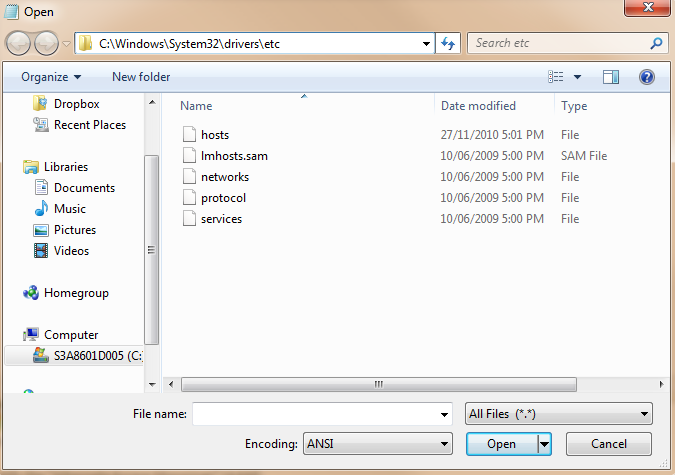
  • Then go to File->Open and open to "\Windows\System32\Drivers\Etc\Hosts" file:
 
https://blogger.googleusercontent.com/img/b/R29vZ2xl/AVvXsEjeUK2AWeOWZhz7wJr_-SuM_NoX3aql2Qd9oNL78Am-4w3k29mp7DCmWUpkIiovAf2TFo9D5PXgP_VpDwi_dFoISnEWHdsMy1MSFME8jtJZs7Pa0VfTPnw5-EceAGGi0E9uNkOOptQV7WY_/s1600/Open+hosts+file.png 
 
  • Add the IP address and the destination to the end of your hosts file. In my case I added "127.0.0.1        SharePointTidBits" right to the end.
  • Save and Close.
  • If you have an environment controlled by a DNS server you should add new name to your existing DNS Servers either "A" or "CNAME" record.


Once we handled the DNS/hosts modification then we need to add or modify the "Alternate Access Mappings" (AAM).

Go to :
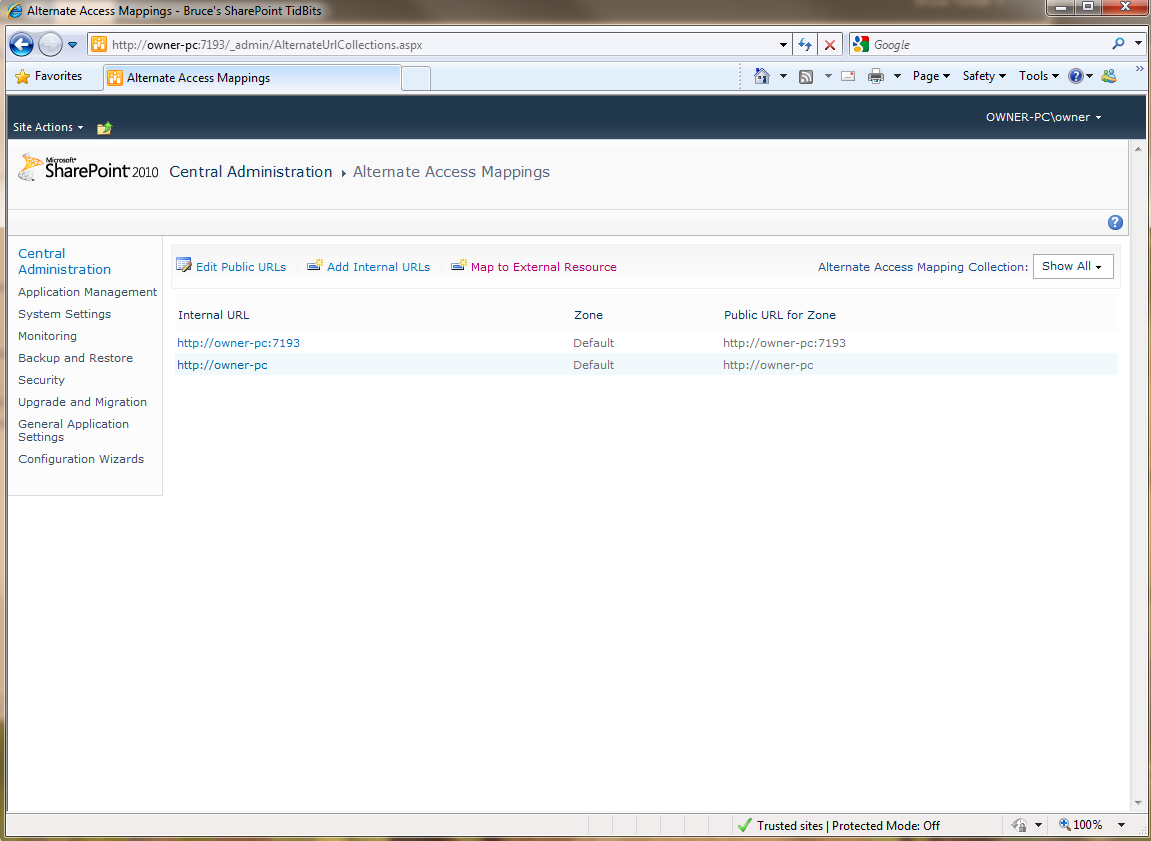
Central Administration -> System Settings -> Configure Alternate Access Mappings. 
 
https://blogger.googleusercontent.com/img/b/R29vZ2xl/AVvXsEh27145lKQHzhCGId3Lo_McaXzpquP5f21YX4qRsqcWhRa8r_u1yIvvNhhTWFNkQhqSp9yoUG7l706KX65iYxKOVdRMj6yQ5NnIPDK9PsBkUp9pWIK2-FOUul-PWyoIKJi6fnH95ON_WF8W/s1600/SharePoint+CentralAdmin+Alternate+Access+Mappings.png 
 
Then you click to "Add Internal URLs"
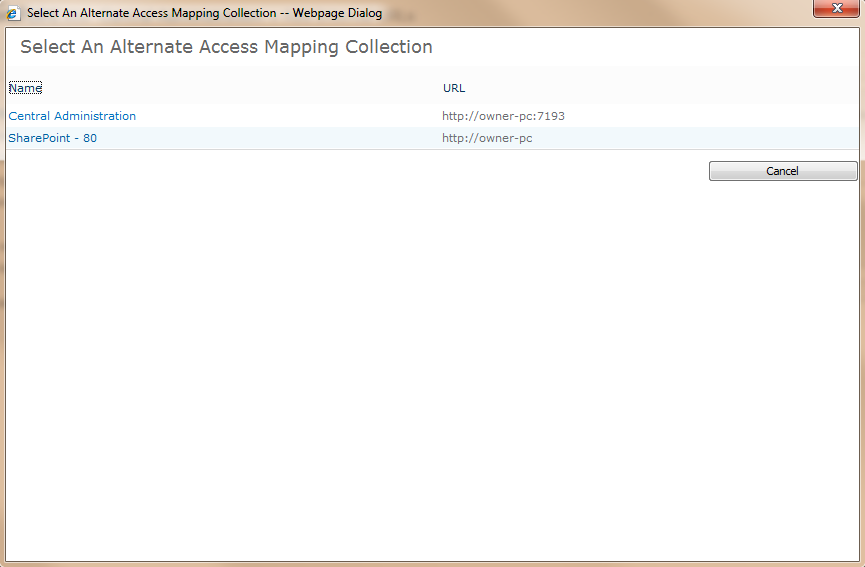
Please select the correct "Alternate Access Mapping Collection". This will be the your site you’d like to add/change the URL. Click "Alternate Access Mapping Collection":
 
https://blogger.googleusercontent.com/img/b/R29vZ2xl/AVvXsEj4okZFWDikxOKBO76djdhwhSM4QgnjB3Js6vuL0ejmtVVnOPJnomlcTmMo4gkv7cgWk3_lX114xAERefkjwEP1-PZxzzfpY29WN6hbN86NjWA0xlM6Qf9OKocG7t4HVZGqLZhOdq-1tyjb/s1600/SharePoint+CentralAdmin+Alternate+Access+Mappings+SIte+Collection+Selection.png


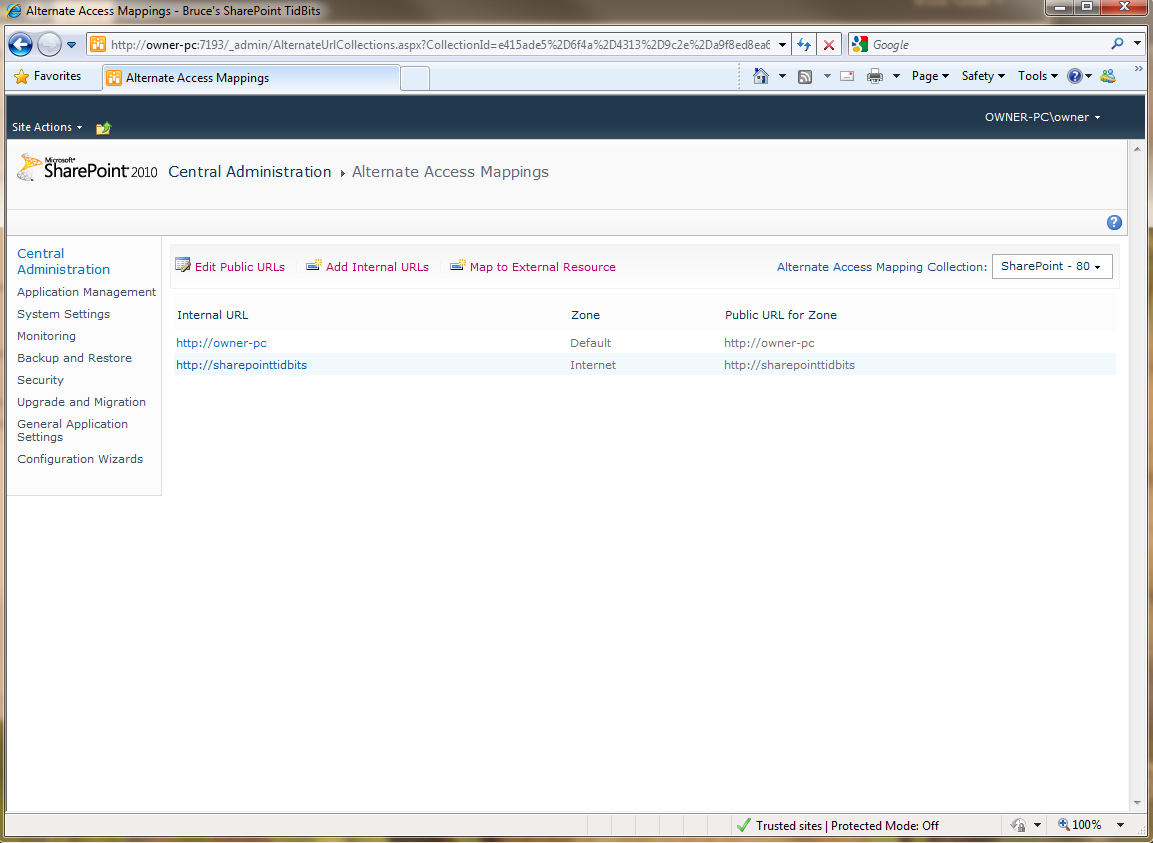
In my case I select "SharePoint - 80" and I enter the URL I would like to add to the appropriate zone which in my case it is my Intranet.
 
https://blogger.googleusercontent.com/img/b/R29vZ2xl/AVvXsEi3F7v8CSPDLpIJdZaoPwOm_WcVqw5HKfE7f3YgM9Yexgdhycvz-Hj0Kni5HL7s3sJONzOboud5zsaBj7btIVVUZ8QhDGS467obh7xPN7y0Iq5njbdoL-qhHYfg1n1FnCf1O_jlSY2ejmPu/s1600/SharePoint+CentralAdmin+Alternate+Access+Mappings+Intranet+Site+Added.png 
 
Then I click save and here we go:
 
https://blogger.googleusercontent.com/img/b/R29vZ2xl/AVvXsEj3VUVc54YA0XiRlqeqKKLI4n6PKkGkeBdlwBNy6sDTXXTN0reM7HtIerdA-xjIHamHRBSJDFsSbvERxUCwVZugcOYkyi8WMDreT54Hv1LWGxkyidQb54P70uTKf-UdNegtuyJJXC1242SU/s1600/SharePoint+CentralAdmin+Alternate+Access+Mappings+Site+Added.png 
 
You think that its that easy, isn't it?
It should be but in my case when I try to access to the new URL "http://SharePointTidBits", IE is keep prompting me the user name and password.

Here is what I need to do to solve this issue:
  1. Click Start, click Run, type regedit, and then click OK.
  1. In Registry Editor, locate and then click the following registry key: HKEY_LOCAL_MACHINE\SYSTEM\CurrentControlSet\Control\Lsa\MSV1_0
  1. Right-click MSV1_0, point to New, and then click Multi-String Value.
  2. Type BackConnectionHostNames, and then press ENTER.
  3. Right-click BackConnectionHostNames, and then click Modify.
  4. In the Value data box, type the host name or the host names for the sites that are on the local computer, and then click OK.
  5. Quit Registry Editor, and then restart the IIS service.

Tadaaa!
 
 
https://blogger.googleusercontent.com/img/b/R29vZ2xl/AVvXsEh06lDel8OpScl5IwgPAkbkK5hqoZv5sQOhQ1EXX3rAKrs0sr2HmyK7DkkhnlnYdBLi12UIf8suG0SfgvpWq8aUhOgQIwgtCDbo7Zvq54mB-kX0jPAEf5dQFcwOwaexqLToBQs7IWoI8M_A/s1600/Bruces+SharePoint+TidBits+Alternate+Access+Mappings+Site+is+Working.png


Reference:

http://sharepointtidbits.blogspot.in/2010/11/once-you-have-your-sharepoint-site-up.html