Showing posts with label Send to connections. Show all posts

Thursday, 4 September 2014

Configure Send To connections in SharePoint 2010

In this article we will be seeing how to configure Send To connections in SharePoint 2010.


A connection is created for sending documents to the records center or to the document repository; it specifies the web application from which the document has to be sent and the document repository or records center to which documents will be sent.


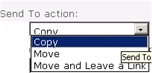
SharePoint 2010 provides a great way to manage the documents. You have three Send To actions.

  • Copy
  • Move
  • Move and Leave a Link

1.gif


Copy:


User can create a copy of the document and send the copy to the other location.


Move:


User can move a document from one location to other location.


Move and Leave a Link:


User can move a document from one location to another location, by leaving a link at the current location indicating that the document has been moved and with the new location information.


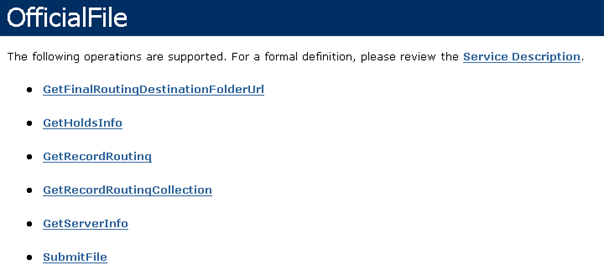
Documents can be sent across a site, a site collection or even farms using the OfficialFile web service http://server/site Url/_vti_bin/officialfile.asmx.


2.gif


In the destination document repository or records center the Content Organizer feature should be enabled, then only documents can be sent. If you don't enable this feature you can't create a new Sent To connection.


Activate the feature Content Organizer:

  • Content Organizer is a site feature.
  • Go to Site Actions => Site Settings => site Actions =>Manage site features.
  • Activate the feature Content Organizer.

3.gif


Create a new Send to connection:
  • Go to Central Administration => General Application Settings =>External Service Connections =>Configure send to connections.

    4.gif

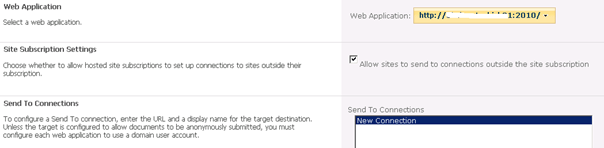
  • Select the web application from which the documents has to be sent.
    5.gif

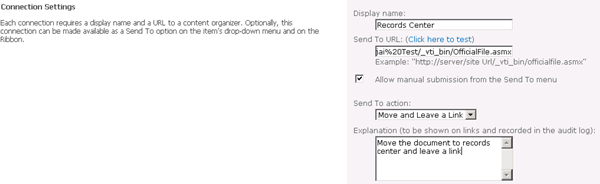
  • In the "Send To Connections" option select "New Connection".
    6.gif

  • In the "Connection Settings" enter the display name.
  • In the "Send To URL" enter the web service url of the destination document repository or records center.
  • Send To URL:

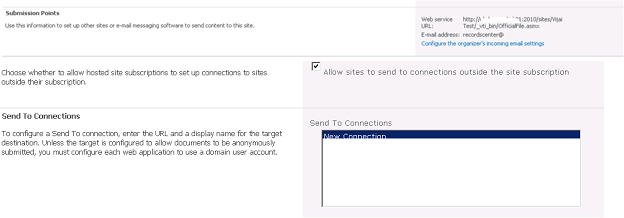
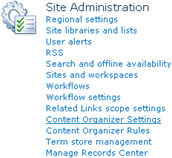
    • In the destination document repository or records center, go to Site Actions => Site settings => Site Administration => Content Organizer settings =>Submission Points.
      7.gif

    • Copy the Web Service URL.

      8.gif
  • Click on "Click here to test" to test the url.
  • Select the "Sent To action ".
  • Enter the explanation for the connection.
  • Click on "Add Connection".
  • A new Sent to connection will be created.
  • Click Ok.

Testing the connection:

  • Go to the site from where you want to send the document.
  • Select the document, go to ECB drop down menu => Send To => Records center.
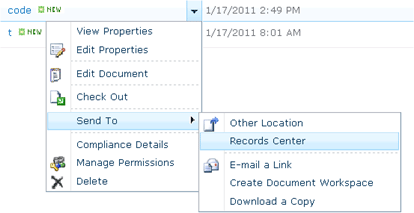
    9.gif

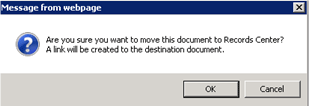
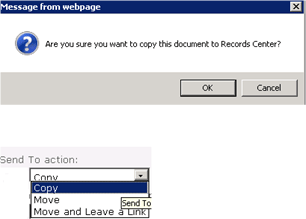
  • A message will pop up, click Ok.

    10.gif

  • Document has been sent to the destination successfully.
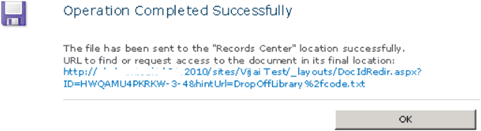
    11.gif

  • Now click on the document; you will be redirected to a page where you will see the link of the document current location.
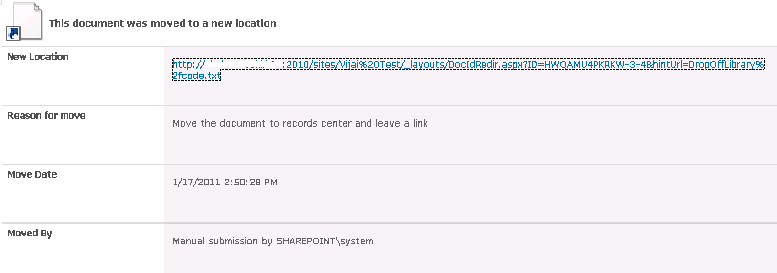
    12.gif

  • Click on the link, it will be redirected to the destination location where the document is present.

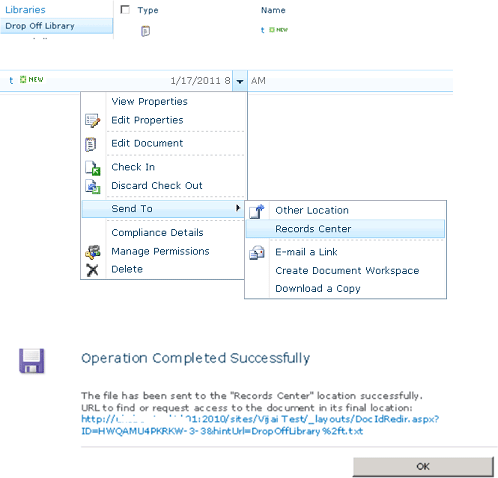
    13.gif

    14.gif

    15.gif

    16.gif


How to Configure Send to Connections in SharePoint 2010

Document management is an important function in SharePoint, because many document libraries need to be created in different sites to store all kinds of documents. Due to some reasons, you may have to regularly copy some documents from different libraries to another same library. Fortunately, SharePoint provides Send to Connections to send connection to external document repositories.
Now, I will show you how to configure the Send to Connections in SharePoint 2010.

Step1. Go to Central Administration>General Application Settings>External Service Connections

configure send to connections in sharepoint 2010-4
Click Configure send to connections to open the configuration page. Select the web application for which you want to enable the service. Here, for example, select the 80 port. Then, add one connection and the two connections can be created. The URL and a display name for the target destination are required. Note that the display name should be a valid unique name. The format of Send To URL, however, has certain requirements. The following steps will show you how to get the correct URL.

Step2. Go to Site Action > Site Settings > Manage site features.

Activate Content Organizer.
configure send to connections in sharepoint 2010-6

Step3. Go to Site Settings > Site Administration.

Click Content Organizer Settings. Copy the web service URL as shown in the following screenshot.
configure send to connections in sharepoint 2010-5

Step4. Paste the copied URL to the field Send to URL and type a display name.

You don’t need to modify other settings. Just click add connection and a new connection Connection3 will be added successfully. Click OK to save above settings.
configure send to connections in sharepoint 2010-4

Step5. Open one document library and right-click the document you want to send.

Select Send To in the drop-down menu.
configure send to connections in sharepoint 2010-3

Step6. Click Connection3 in the sub menu and a confirmation dialog will pop up.

Click OK. After a while, it shows the operation result.
configure send to connections in sharepoint 2010-2
Note that by default settings, the document is copied to the Drop Off Library.
configure send to connections in sharepoint 2010-1
I hope the above steps would help you configure Send to Connections in SharePoint 2010 in an easy way.

Reference:

Good Article by

http://www.boostsolutions.com/blog/how-to-configure-send-to-connections-in-sharepoint-2010/